
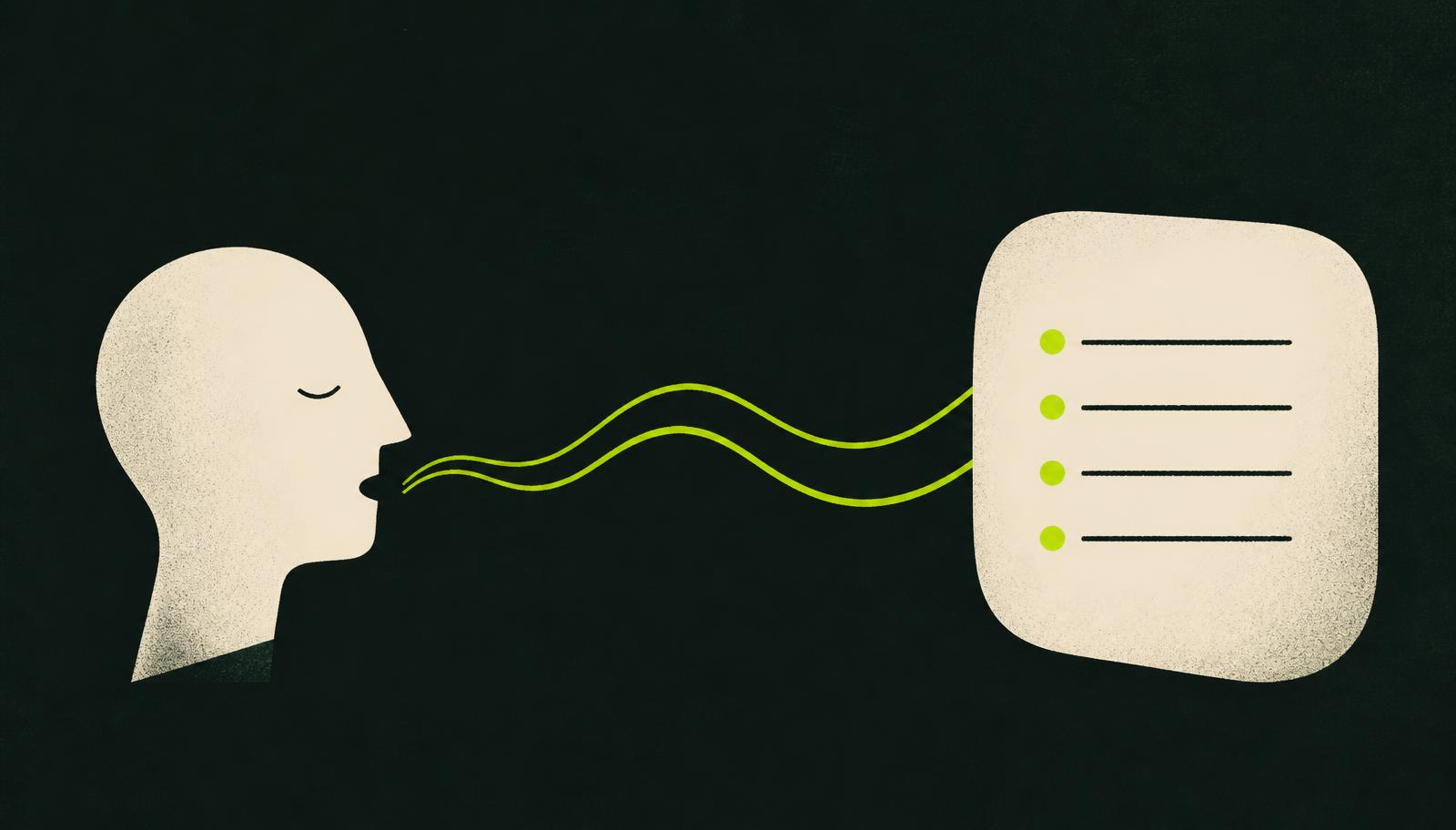
You had the whole plan worked out in your head on the walk home from the coffee shop, and by the time you sat down at your laptop it had evaporated. If that's a familiar kind of frustration, you're not broken and you're not lazy. For a lot of neurodivergent brains, the idea arrives fully formed at exactly the moment you can't write it down — in the shower, mid-walk, halfway through cooking — and the gap between "I know exactly what to do" and "it's safely captured somewhere I'll look again" is where good plans quietly die. The fix isn't more discipline. It's shortening that gap: speaking is faster than typing, and it's available when your hands and your screen aren't. This is about getting those spoken thoughts into a place you actually trust — one that bends to the way your attention already works, instead of asking you to arrive organized before you've even finished thinking.
What "voice to text Notion" actually means
Voice to text Notion is any setup where you speak a thought out loud, it gets turned into text, and it lands in your Notion workspace without you having to sit down and type it in by hand. That's the whole promise: capture at the speed of talking, organize at the speed of a machine. In the NeuroDeepFlow method we add one step in the middle — an AI assistant (Claude) that reads the messy transcript, sorts it, and decides what's a task, what's a note, and what can wait. So the full chain is voice note → Claude → Notion. You supply the words; the sorting and filing happen off to the side, without you. Notion isn't the hard part here and it isn't doing the thinking — it's just the calm place the finished result lands.
Why "just type it into Notion" doesn't work
The obvious advice is to open Notion and type your thought into a database. On a good day, that works. The problem is that the good day isn't when you need it most. Opening the app, finding the right page, picking the right properties, and writing a clean entry is four or five small decisions stacked together — and every one of them is a place where a distractible brain can get pulled away or freeze. By the time you've navigated to the right database, the thought that felt urgent thirty seconds ago has faded, or you've opened three other tabs, or you've talked yourself out of it. Typing also demands that you already know where a thought belongs before you've finished having it. Voice capture flips the order: you empty your head first, and the sorting comes after. For brains whose working memory drains fast, that order is everything.
The setup, step by step
Here's the version that survives real life. Three moving parts, buildable in an afternoon.
Step 1 — Speak the thought straight into your assistant
The best version skips recording altogether: you open your AI assistant — Claude, which the rest of this setup runs on (ChatGPT works the same way) — and just talk into it. To make that effortless on every device, I use a dictation tool called Wispr Flow. It sits on all my devices — phone, laptop, tablet — so the mic is always right there, and one tap lets me speak straight into Claude wherever I am. The thought lands as text, already inside the thing that's about to sort it — capturing and handing-off in a single move, with no file to move around afterward.
No Wispr Flow? You don't need it. Most phones and laptops already dictate — open your assistant, tap the keyboard mic, and talk. The point isn't the tool; it's that your words go directly into the assistant, not into a recording you'll have to deal with later.
The phone voice-memo app is the fallback, for the moment you genuinely can't get into your assistant. It works, but it costs you: the recording just sits there until you upload it somewhere to be transcribed and processed, so you've created a loose end to chase down. Fine as a safety net — not where you want to live.
Either way, don't overthink it. Ramble, repeat yourself, trail off mid-sentence. Mess is fine — the next step cleans it up.

Step 2 — Ask Claude to sort and prioritize
Your words are already in Claude from Step 1 (or you paste in a batch you captured on the go). Ask it to split what you said into tasks, ideas, and reference notes — and to flag anything time-sensitive. This is the step that removes the decision fatigue. You're no longer staring at a wall of raw text deciding where each piece goes; Claude proposes the structure and you just glance at it and nod.

Step 3 — Send the sorted output into Notion
The organized list goes into your Notion capture database — one row per item, category and status already filled in. Do it by copy-paste to start; later you can connect Claude to Notion so the items land on their own. Either way, by the time anything reaches Notion it's already sorted. Notion becomes the place things live, not the place you do the sorting.
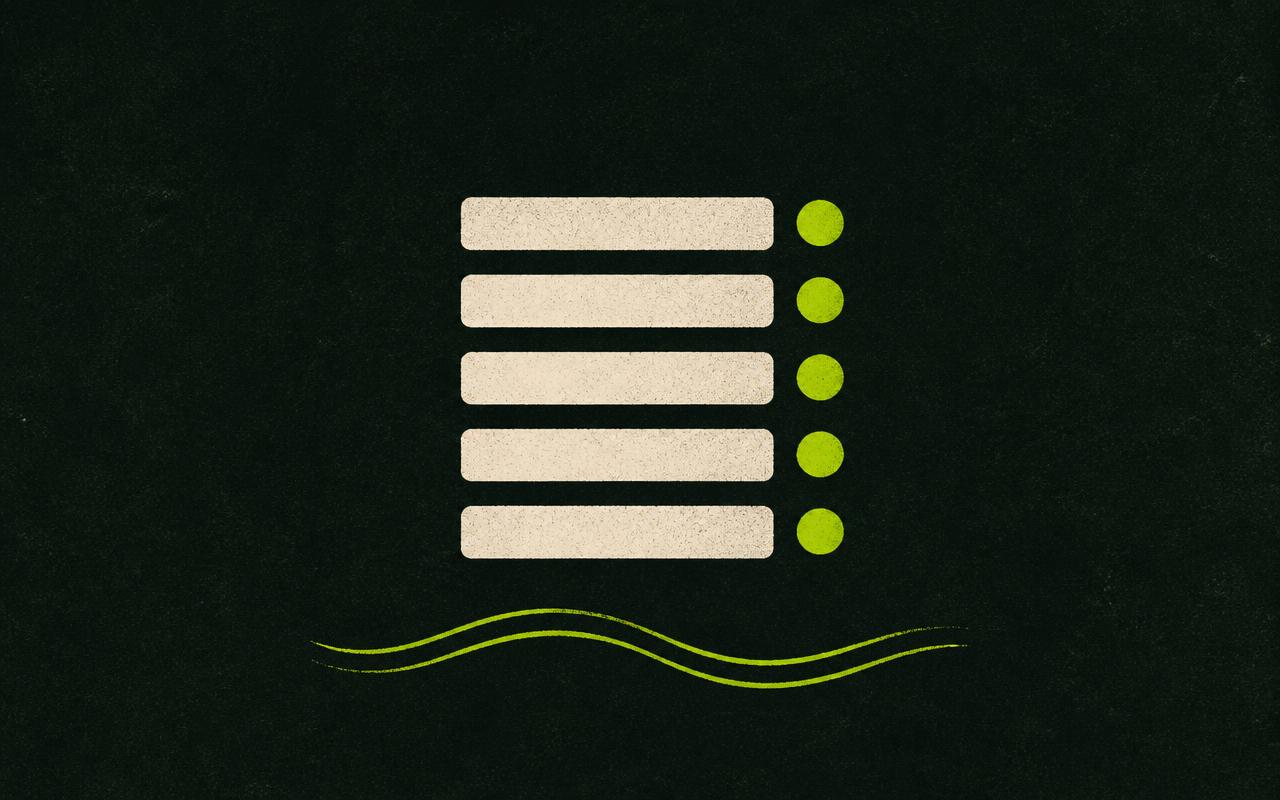
The order is the whole design: capture where it's easy, sort where it's smart, store where you'll find it. Each part does exactly one job, so no single part is heavy enough to avoid.
How it plays out on a real day
It's 7:40 a.m. You're making coffee and three things land at once: you need to call the pharmacy before it closes, you've just figured out a cleaner way to open the team's weekly update, and there's a message from your sister you've been meaning to answer for two days and feel bad about. Instead of trying to hold all three — and losing two — you pick up your phone and talk for forty seconds: "Call the pharmacy today, before six. Weekly update, try opening with the one number that actually changed instead of the recap. And text my sister back — it's been two days and I keep forgetting." Then you put the phone down and drink your coffee.
At 9 a.m., batching, you hand that note to Claude. It comes back with a call-the-pharmacy task flagged for today, a note tucked under writing ideas, and a reminder to text your sister marked today too. Three things, sorted and sitting in Notion, before the coffee had fully kicked in. Nothing had to rattle around your head long enough to turn into a spiral.
What it costs, and where it falls short
On price, this stays cheap on purpose. Notion's personal plan is free and covers everything the setup asks of it — you're storing a modest list, not building a database empire. There's a paid Notion AI add-on floating around $20 a month, but you can skip it here: the intelligence in this flow lives in Claude, not in Notion. Claude's free tier is enough to run the whole thing end to end and decide whether it fits you; if it becomes a daily habit, the paid tier mostly buys you room to lean on it harder. Try it on the free tiers first, and only pay once it's proven it belongs in your week.
Where it falls short, honestly: voice transcription isn't perfect, especially with names, jargon, or background noise, so you'll occasionally fix a word. Batching means items aren't in Notion the instant you speak them — there's a lag between capture and filing, which is a fair trade for not interrupting your day, but it is a trade. And like anything new, it needs a short break-in period before it stops feeling like a chore; expect the first handful of days to be forgettable, literally — you'll leave notes unbatched and wonder if it's working. That's the setup finding its footing, not you failing at it.
And one thing worth saying plainly: this is an organizing tool, nothing more. It doesn't diagnose, treat, or stand in for care from someone qualified who actually knows your situation. All it does is make the act of capturing a thought less costly for a brain built the way yours is.
Frequently asked
Do I need Notion AI for this?+
No. The AI work happens in Claude before anything reaches Notion, so the free Notion plan is plenty.
What if my voice notes are a rambling mess?+
That's the intended input. Rambling is faster than composing clean sentences, and the sorting step exists precisely to handle mess. Talk the way you think.
Can I automate the last step so I'm not copy-pasting?+
Yes. Once the manual flow feels solid, you can connect Claude to Notion so sorted items land automatically. Start manual, automate once it's a habit.
How long does a daily batch take?+
Usually two to five minutes, depending on how much you captured. It's a review, not a work session — you're glancing at what Claude sorted, not redoing it.
What if I forget to batch?+
Nothing expires and nothing scolds you — the notes are still there whenever you come back. Pairing the batch with something you already do — morning coffee, end of the workday — makes it stick faster than any reminder alarm.
This is the system, not just the theory.
NeuroDeepFlow packages the Claude setup, the Notion structure, and the daily routine into one thing you can run tomorrow morning.
Join the waitlistKeep reading

An ADHD brain dump clears the mental noise fast. Here is a 90-second voice method that turns the chaos into a sorted list, without a system you have to maintain.

A deliberately small Notion setup for ADHD brains: one inbox, voice capture, and Claude doing the sorting — so you can neglect it for two weeks and still trust it.